Quantity Tiers layout for WooCommerce
What it is
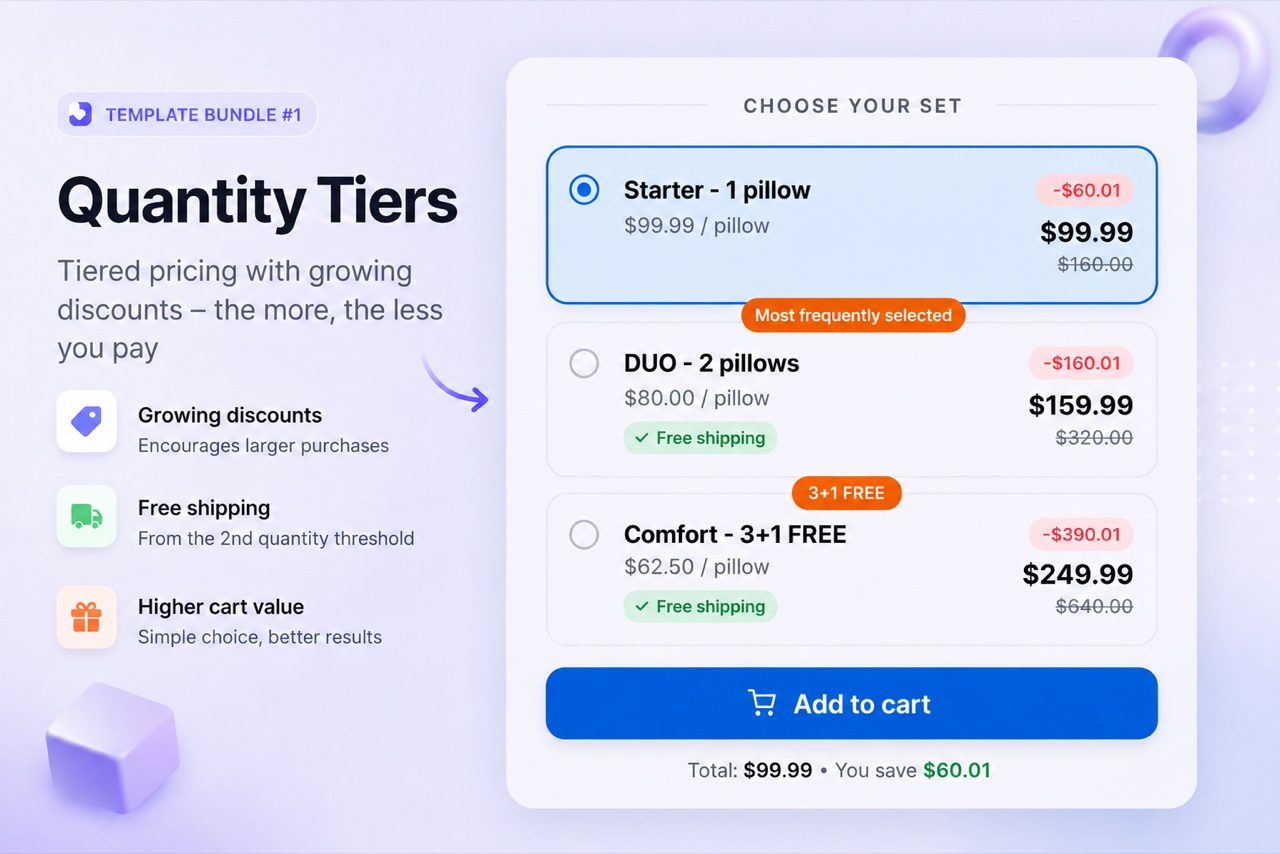
Quantity Tiers is a card-based bundle layout that shows 2 to 5 pricing tiers side by side on the product page. Each tier has its own quantity, price, and optional label. The customer picks a tier and adds the bundle to the WooCommerce cart in one click. It is the most direct way to show volume discounts visually and push buyers toward higher quantities.
When to use it
Use Quantity Tiers when you have a product that customers commonly buy in multiples - consumables, accessories, or stationery - and you want to show the savings comparison clearly. It works best with 2-4 tiers. If you need more than 5 tiers or a more compact table display, consider the Quantity Breaks layout instead.
How to set it up
- Create a bundle with Quantity Tiers layout
In WordPress, go to BizBundles and create a new bundle. Select the Quantity Tiers layout and attach it to your product page.
- Define your tiers
Add 2-5 tiers. For each tier set the quantity, the discount (percentage, fixed amount, or fixed price per unit), and an optional tier label like "Best value". The live preview shows the rendered card immediately.
- Publish
Hit publish and the tier widget appears on the product page. The customer clicks a tier card and adds the bundle - all products go to the WooCommerce cart at the correct prices.
Use cases
Frequently asked questions
How many tiers can I add to Quantity Tiers?
You can add between 2 and 5 tiers. The layout is designed for compact visual comparison - more than 5 tiers should use the Quantity Breaks table layout instead.
Does Quantity Tiers work on the Free plan?
Yes. Quantity Tiers is one of the two layouts available on the BizBundles Free plan, together with Quantity Breaks. You get 1 active bundle with no time limit.
Can I highlight a recommended tier?
Yes. Each tier has a "popular badge" option. Enabling it places a highlight on that tier card to guide buyers toward your preferred option.